
Video Gallery
Featured Videos

Duration: 21:12
Keynote: Augmenting Insights into Fresh-Food Supply Chains via Digital Twins, Mobile Apps, and a Virtual Lab
In this keynote talk from COMSOL Day: Simulation Apps & Digital Twins, Thijs Defraeye shares how the Swiss Federal Laboratories for Materials Science and Technology (Empa) is dedicated to ...

Duration: 27:29
Keynote: Simulation of Vacuum Sensors
Semiconductor chip manufacturing and quantum computing depend on high-vacuum (HV) environments for advanced production processes. In this keynote talk from the COMSOL Conference 2023 Munich, Dr. ...
Duration: 21:53
Keynote: Understanding the Complexity of High-Speed Simulations in Oven Design
Competitive markets necessitate modern simulations and complex models, and as models get more complex, computational resources need to match that growth. In this keynote talk from the COMSOL ...

Duration: 22:58
Keynote: Thermal Modeling of a Compressor for CO2 Removal in the International Space Station
Living and working in outer space requires contaminant removal technology, such as the Carbon Dioxide Removal Assembly (CDRA) that is used on the International Space Station (ISS). This technology ...
Duration: 21:04
Keynote: Diagnostic Models for Nuclear Fusion
Fusion reactors consist of components such as heating and current drive systems, first wall components, and tritium breeding blankets. Monitoring and safely controlling these components requires ...

Duration: 22:11
Keynote: Modeling in Optics Processing in Support of High-Power Laser Systems
Laser-induced surface modifications of glass has emerged as a polishing technique due to its ability to decrease subaperture surface roughness. Implementing this technique requires an understanding ...
Duration: 25:34
Keynote: Multiphysics Modeling in AR & VR Innovation
Meta is working to advance the optical and display technologies for its augmented reality (AR) and virtual reality (VR) devices, a process that requires extensive research and innovation — and ...

Duration: 22:48
Keynote: FEM Tools for Optimizing Drivers and Acoustic Radiation in High-End Loudspeakers
Devialet, a company specializing in high-end acoustic engineering, uses multiphysics simulation to optimize loudspeaker development. In this keynote talk from the COMSOL Conference 2023 Munich, ...

Duration: 23:32
Keynote: Optimum Electromagnetic and Thermal Design of DC-Link Capacitors
Inverters change the DC produced by an electric vehicle's battery into the AC needed to drive its motors. Inside these inverters, the DC-link capacitor fulfills the integral role of stabilizing the ...
Duration: 21:53
Keynote: How Simulation Can Be Used to Improve SPS Material Densification
Spark plasma sintering (SPS) is an energy-efficient technique that involves Joule heating and uniaxial pressure to densify materials such as ceramics, metals, and composites. The key to this ...
Duration: 19:30
Keynote: Onboarding a CAE Department in Biopharma R&D
In this keynote talk from the COMSOL Conference 2023 Munich, Dr. Friedrich Maier of Sartorius discusses the intricacies and advantages of biopharmaceutical product development and shares Sartorius' ...
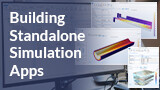
Duration: 6:58
Building Standalone Simulation Apps with COMSOL Multiphysics®
The COMSOL Multiphysics® software platform includes the Model Builder for creating models, the Application Builder for building custom simulation apps, and the Model Manager to further ...

Duration: 18:28
Keynote: Mathematical Modeling of SEI Growth
The solid electrolyte interphase (SEI) is a layer on lithium-ion battery electrodes that is known to grow on the surface of a graphite anode during various cell conditions: trickle charge, open ...

Duration: 21:27
Keynote: Numerical Simulation of Primary Alkaline Zn–MnO2 Batteries
In this keynote talk from COMSOL Day: Batteries & Fuel Cells, Xiaotong Chadderdon of Energizer introduces primary alkaline Zn–MnO2 battery technology as well as the role of modeling in ...
Duration: 17:46
Keynote: Modeling of Transformer-Coupled Toroidal Plasma
Plasma has properties that make it uniquely suitable for semiconductor fabrication. As such, various forms of low-temperature plasma have become widely used in semiconductor manufacturing ...
Duration: 21:12
Keynote: Augmenting Insights into Fresh-Food Supply Chains via Digital Twins, Mobile Apps, and a Virtual Lab
In this keynote talk from COMSOL Day: Simulation Apps & Digital Twins, Thijs Defraeye shares how the Swiss Federal Laboratories for Materials Science and Technology (Empa) is dedicated to unveiling ...
Duration: 27:29
Keynote: Simulation of Vacuum Sensors
Semiconductor chip manufacturing and quantum computing depend on high-vacuum (HV) environments for advanced production processes. In this keynote talk from the COMSOL Conference 2023 Munich, Dr. ...
Duration: 21:53
Keynote: Understanding the Complexity of High-Speed Simulations in Oven Design
Competitive markets necessitate modern simulations and complex models, and as models get more complex, computational resources need to match that growth. In this keynote talk from the COMSOL ...
Duration: 22:58
Keynote: Thermal Modeling of a Compressor for CO2 Removal in the International Space Station
Living and working in outer space requires contaminant removal technology, such as the Carbon Dioxide Removal Assembly (CDRA) that is used on the International Space Station (ISS). This technology ...
Duration: 21:04
Keynote: Diagnostic Models for Nuclear Fusion
Fusion reactors consist of components such as heating and current drive systems, first wall components, and tritium breeding blankets. Monitoring and safely controlling these components requires ...
Duration: 22:11
Keynote: Modeling in Optics Processing in Support of High-Power Laser Systems
Laser-induced surface modifications of glass has emerged as a polishing technique due to its ability to decrease subaperture surface roughness. Implementing this technique requires an understanding ...
Duration: 25:34
Keynote: Multiphysics Modeling in AR & VR Innovation
Meta is working to advance the optical and display technologies for its augmented reality (AR) and virtual reality (VR) devices, a process that requires extensive research and innovation — and ...
Duration: 22:48
Keynote: FEM Tools for Optimizing Drivers and Acoustic Radiation in High-End Loudspeakers
Devialet, a company specializing in high-end acoustic engineering, uses multiphysics simulation to optimize loudspeaker development.
In this keynote talk from the COMSOL Conference 2023 Munich, ...
Duration: 23:32
Keynote: Optimum Electromagnetic and Thermal Design of DC-Link Capacitors
Inverters change the DC produced by an electric vehicle's battery into the AC needed to drive its motors. Inside these inverters, the DC-link capacitor fulfills the integral role of stabilizing the ...
Duration: 21:53
Keynote: How Simulation Can Be Used to Improve SPS Material Densification
Spark plasma sintering (SPS) is an energy-efficient technique that involves Joule heating and uniaxial pressure to densify materials such as ceramics, metals, and composites. The key to this ...
Duration: 19:30
Keynote: Onboarding a CAE Department in Biopharma R&D
In this keynote talk from the COMSOL Conference 2023 Munich, Dr. Friedrich Maier of Sartorius discusses the intricacies and advantages of biopharmaceutical product development and shares Sartorius' ...
Duration: 6:58
Building Standalone Simulation Apps with COMSOL Multiphysics®
The COMSOL Multiphysics® software platform includes the Model Builder for creating models, the Application Builder for building custom simulation apps, and the Model Manager to further support ...
Duration: 18:28
Keynote: Mathematical Modeling of SEI Growth
The solid electrolyte interphase (SEI) is a layer on lithium-ion battery electrodes that is known to grow on the surface of a graphite anode during various cell conditions: trickle charge, open ...
Duration: 21:27
Keynote: Numerical Simulation of Primary Alkaline Zn–MnO2 Batteries
In this keynote talk from COMSOL Day: Batteries & Fuel Cells, Xiaotong Chadderdon of Energizer introduces primary alkaline Zn–MnO2 battery technology as well as the role of ...
Duration: 17:46
Keynote: Modeling of Transformer-Coupled Toroidal Plasma
Plasma has properties that make it uniquely suitable for semiconductor fabrication. As such, various forms of low-temperature plasma have become widely used in semiconductor manufacturing ...
Duration: 21:12
Keynote: Augmenting Insights into Fresh-Food Supply Chains via Digital Twins, Mobile Apps, and a Virtual Lab
In this keynote talk from COMSOL Day: Simulation Apps & Digital Twins, Thijs Defraeye shares how the Swiss Federal Laboratories for Materials Science and Technology (Empa) is dedicated to unveiling ...
Duration: 27:29
Keynote: Simulation of Vacuum Sensors
Semiconductor chip manufacturing and quantum computing depend on high-vacuum (HV) environments for advanced production processes. In this keynote talk from the COMSOL Conference 2023 Munich, Dr. ...
Duration: 21:53
Keynote: Understanding the Complexity of High-Speed Simulations in Oven Design
Competitive markets necessitate modern simulations and complex models, and as models get more complex, computational resources need to match that growth. In this keynote talk from the COMSOL ...
Duration: 22:58
Keynote: Thermal Modeling of a Compressor for CO2 Removal in the International Space Station
Living and working in outer space requires contaminant removal technology, such as the Carbon Dioxide Removal Assembly (CDRA) that is used on the International Space Station (ISS). This technology ...
Duration: 21:04
Keynote: Diagnostic Models for Nuclear Fusion
Fusion reactors consist of components such as heating and current drive systems, first wall components, and tritium breeding blankets. Monitoring and safely controlling these components requires ...
Duration: 22:11
Keynote: Modeling in Optics Processing in Support of High-Power Laser Systems
Laser-induced surface modifications of glass has emerged as a polishing technique due to its ability to decrease subaperture surface roughness. Implementing this technique requires an understanding ...
Duration: 25:34
Keynote: Multiphysics Modeling in AR & VR Innovation
Meta is working to advance the optical and display technologies for its augmented reality (AR) and virtual reality (VR) devices, a process that requires extensive research and innovation — and ...
Duration: 22:48
Keynote: FEM Tools for Optimizing Drivers and Acoustic Radiation in High-End Loudspeakers
Devialet, a company specializing in high-end acoustic engineering, uses multiphysics simulation to optimize loudspeaker development.
In this keynote talk from the COMSOL Conference 2023 Munich, ...
Duration: 23:32
Keynote: Optimum Electromagnetic and Thermal Design of DC-Link Capacitors
Inverters change the DC produced by an electric vehicle's battery into the AC needed to drive its motors. Inside these inverters, the DC-link capacitor fulfills the integral role of stabilizing the ...
Duration: 21:53
Keynote: How Simulation Can Be Used to Improve SPS Material Densification
Spark plasma sintering (SPS) is an energy-efficient technique that involves Joule heating and uniaxial pressure to densify materials such as ceramics, metals, and composites. The key to this ...
Duration: 19:30
Keynote: Onboarding a CAE Department in Biopharma R&D
In this keynote talk from the COMSOL Conference 2023 Munich, Dr. Friedrich Maier of Sartorius discusses the intricacies and advantages of biopharmaceutical product development and shares Sartorius' ...
Duration: 6:58
Building Standalone Simulation Apps with COMSOL Multiphysics®
The COMSOL Multiphysics® software platform includes the Model Builder for creating models, the Application Builder for building custom simulation apps, and the Model Manager to further support ...
Duration: 18:28
Keynote: Mathematical Modeling of SEI Growth
The solid electrolyte interphase (SEI) is a layer on lithium-ion battery electrodes that is known to grow on the surface of a graphite anode during various cell conditions: trickle charge, open ...
Duration: 21:27
Keynote: Numerical Simulation of Primary Alkaline Zn–MnO2 Batteries
In this keynote talk from COMSOL Day: Batteries & Fuel Cells, Xiaotong Chadderdon of Energizer introduces primary alkaline Zn–MnO2 battery technology as well as the role of ...
Duration: 17:46
Keynote: Modeling of Transformer-Coupled Toroidal Plasma
Plasma has properties that make it uniquely suitable for semiconductor fabrication. As such, various forms of low-temperature plasma have become widely used in semiconductor manufacturing ...